
Holoscan Sensor Bridge Hardware Connection


Hardware Required
Here you can find a list with the hardware required
- NVIDIA Jetson Orin AGX
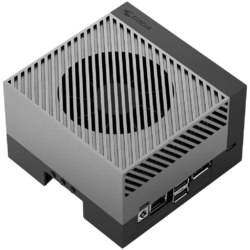
NVIDIA Jetson Orin AGX. Source: NVIDIA - NVIDIA Holoscan Sensor Bridge
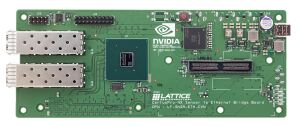
Holoscan Sensor Bridge. Source: Lattice Semiconductor - Jetson-IMX274-Dual Cameras
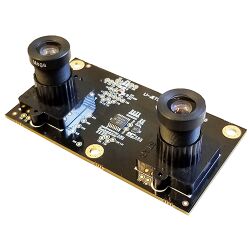
li-jetson-imx274-dual. Source: Leopard Imaging Inc - 10Gtek Ethernet Adapter
- Ethernet Cable
- USB A to USB C cable


Connection Diagram
Here you can find a diagram describing the connection required.

Host Set Up
Use the following steps to set up the hardware requirements.
- Install git-lfs
sudo apt-get update
sudo apt-get install -y git-lfs
- Enable larger network receiver buffers.
echo 'net.core.rmem_max = 31326208' | sudo tee /etc/sysctl.d/52-hololink-rmem_max.conf
sudo sysctl -p /etc/sysctl.d/52-hololink-rmem_max.conf
- Configure a static IP address for the eth0 port.
sudo nmcli con add con-name hololink-eth0 ifname eth0 type ethernet ip4 192.168.0.101/24
sudo nmcli connection up hololink-eth0
- Go to /boot/extlinux/extlinux.conf and add
isolcpus=2
At the end of the line that starts with APPEND.
If you need more detailed information about the hardware setup, use the following Link.